Showing posts with label Tech Timer Saver. Show all posts

Wednesday, June 8, 2016

Tech Time Saver: Free App "Tools" Part 2

Last week, I talked about some of my favorite apps that I use as “tools,” much like I would use a physical objects such as timers, white boards, or a metronome. In case you missed it, please check out that post here. Let’s go ahead and jump back into it and continue my list of favorite app “tools” to use with the adolescent population!

  • Auto Rap Are you looking for a modern, fun way to get your quiet students to speak up? Are sessions with your Mod/Severe students lacking spice? Why not rap! Auto Rap turns anything it hears into an auto-tuned rap, how fun is that? Here’s an example of one way I used this app: When working on functional phrases with my Mod/Severe students, they all take turns saying their phrase into the iPad in order to have it turned into a rap. It engages students who may otherwise have been unlikely to participate and the students really enjoy getting the rap feedback, It encourages practice because once they learned how the app functioned, I required them to practice multiple times without the app in order to be ready to rap! Another app, Rap Wars offers more free beats; however, for my therapy purposes, I’ve found the free beats on Auto Rap to be perfectly sufficient.
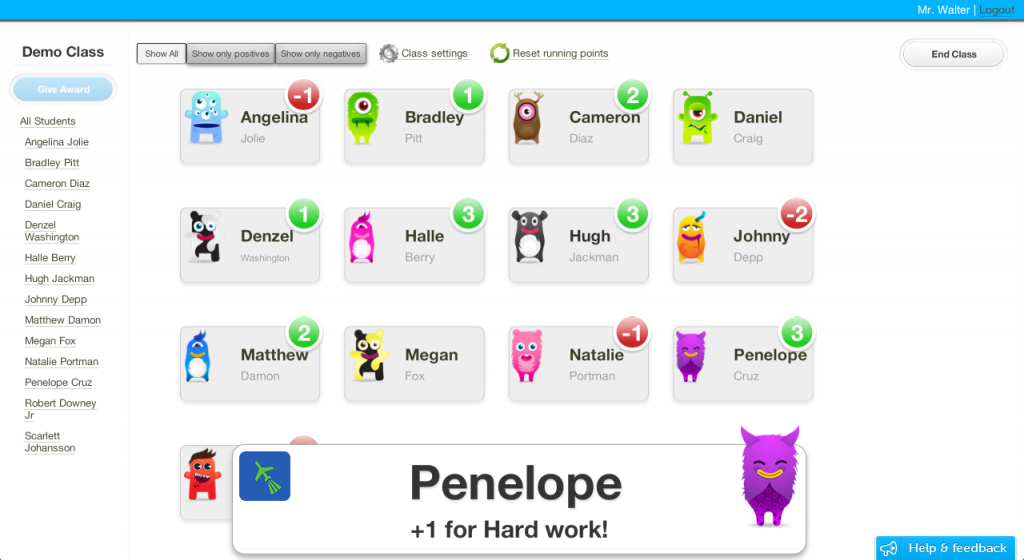
  • Class Dojo This is an app I have only used with my Moderate/Severe classes, although I could definitely see it working well with a group of unruly freshmen. Class Dojo serves as a behavior monitoring app that allows each of the students in your group to be visually represented by a “monster” that you can award or detract points for any type of behavior you identify (e.g. answer a question, make a comment, off-task comment, negative comment, etc.). The app is represented on all platforms - computer, tablet, phone, etc. so I will often display the points on the SMARTBoard for all the students to see while using my iPad to record points as I walk around the room. It serves to motivate the students greatly - they’re competitive, after all! - and it’s an easy way to record data since it tracks what the student did to earn or lose the point. I definitely recommend exploring  this app if you haven’t tried it before!

  • Flashcards+ by Chegg I get it, sometimes flashcards are a necessity. As much as I loathe drilling and killing artic, vocab, and other skills with flashcards, sometimes the occasion calls for it. The next time you consider jerry rigging some old Super Duper cards to try and fit the needs of your adolescents, consider creating a custom deck on your iPad! No printing, laminating, or cutting required! You can use pictures straight from the internet (so they can be very age appropriate) and write as much or as little information on each side of the “card.” You can save them in groups and then have decks ready for use in future situations. I’ve even used this app to create custom task cards for a board game! There’s lots of ways to integrate custom digital flashcards into your therapy.

  • Getty Images & Thinkstock These apps are essentially large caches of images sorted by categories, however you can search for specific images. I like Getty Images because the photographs are typically very colorful and beautiful with lots of opportunities to discuss what’s in the picture. You can save images to “boards” (think Pinterest), although you can’t download them unless you purchase a subscription. However, if you plan on using them as a type of busy picture or discussion point, they look great as a full-screen iPad display! Thinkstock is similar in function, however it focuses more on stock photos rather than the beautiful photos Getty Images tends to have. I like to use the apps because oftentimes searching for images on Google Images doesn’t quite give me what I want (e.g. images are too small, not very visually interesting, etc). And I like the opportunity to save the images in groups within the app; with Google Images I would have to copy each image into a Word Document if I wanted to save it, which is time consuming and the formatting is always a nightmare!

  • Bla Bla Bla Bla  Bla Bla is a silly, fun app I find myself using with really hesitant articulation and voice students. The app consists of a series of black and white faces that respond when audio input is presented. The faces mutate and change to reflect what the app hears. It doesn’t really look overly juvenile or childish and the students seem to enjoy the visual feedback they receive!

I hope this two-part series has provided you with some inspiration and ideas to take to your therapy sessions tomorrow. Let me know in the comments if you have a favorite “tool” app that I haven’t discovered yet!

As always, it doesn't have to be fancy, just keep it fun and functional!

  • Jillian, the No-Frills SLP

Wednesday, June 1, 2016

Tech Time Saver: Free App "Tools" Part 1

How many of you have found yourself searching for new ways to incorporate technology into your sessions? I would hope you all are! Technology is the future; our students are expected to know how to craft PowerPoints, use digital media, and keep up with new generations of smart phones. Plus, I’m constantly on the look-out for how I can introduce new types of technology into my sessions because my students end up more engaged!

Unfortunately, it appears that app designers must imagine that all students with speech and language issues disappear in 6th grade, because I have had a very hard time finding apps that are appropriate for use with older students. Apps that tout themselves as stand-alone therapy activities, like digital irregular verb flashcards and childish articulation games, are a dime a dozen (I’m looking at you, Thera App!)! I quickly learned that a ready-made, no-prep, grab-and-go, app for teenagers probably doesn’t exist. And realistically, how could it? Teenagers typically aren’t interested in cutesy animations and mindless games that are based solely on luck. I realized that if I wanted to use apps in my therapy sessions, I would have to incorporate them as pieces of a larger therapy puzzle (rather than relying solely on an app to do my therapy for me).

So, without further ado, here’s Part 1 of favorite FREE app “tools” that can be used in conjunction with your favorite therapy activities.


Have you ever seen those crafty SLPs who print out large, customized dice with cute pictures or specific vocabulary? Ever thought to yourself, “My kids would tear those apart in a minute,” or “I don’t have time for cutting and glueing nonsense!” Don’t you wish you had the ability to quickly and easily make custom dice? Look no farther than Make Dice Lite. This app gives you the ability to program the dice to contain whatever you want - large numbers, phrases, single words, new vocabulary, anything! Once created, you shake the iPad “roll” the dice randomly. You can even mix and match dice to make combinations! I have used this app to augment writing tasks (e.g. dice with custom vocab words), figurative language tasks (e.g. dice that say “metaphor,” “simile,” “idiom,” etc.), and more.

Although I prefer to use my SMARTBoard or wall-mounted white board for visuals when working with groups, there are definitely times when having a small white board is necessary. But the unfortunate thing about traditional whiteboards is that once you’re done, your creation is gone forever. Not so with Educreations! Think of Educreations as if it were a saveable whiteboard. Draw diagrams, make lists, and create therapy activities that you can then save and access any time in the future! In fact, you can add an audio recording to your progression of writing and drawing and turn it into an instructional video that can be saved and played back any time. In addition, sometimes I use the screencast function to display what I’m writing on the app to my SMARTBoard. That way, I can be writing something on the iPad and have it show up on the SMARTBoard for all my students to see.

Let me just say first of all that I am a Time Timer acolyte. I set my large 
Time Timer at the beginning of each session - I would be lost without 
it. But sometimes, one timer is not enough. Sometimes, I need my Time 
Timer to count down the duration of the entire session, but I need another 
timer to count down an individual student’s turn. The nice part about this 
app is that even though it’s free, the ads are not distracting and the timer 
is large and simple. Another app, Bomb Timer, can also be enticing and 
motivating for older students, but it may be distracting for certain 
populations.

When I first started therapy, I used the built-in recording option of my
phone or iPad to audio record assessments and some therapy sessions. It 
worked just fine, but the options to edit the recordings were pretty 
limited and the files were housed with all the other non-work-related 
audio I had stored on my phone or iPad. I realized I needed a good audio 
recording app to edit, modify, and organize my audio files. With Voice 
Record, I can easily move files to Google Drive, add notes and pictures
to be paired with audio files, and edit things like volume, pitch and
speed. The app also provides a visual feedback mechanism for loudness
that is a great visual for students working on increasing or decreasing
their volume! I end up using recordings a lot now - not just for 
assessments, but for...
  • students with language disorders to hear themselves give an explanation or tell a narrative,
  • fluency students to hear themselves using strategies or stuttering easier,
  • articulation students to hear the difference between productions,
  • moderate/severe students who enjoy the sensory aspect of hearing themselves on a recording,
  • and so much more!

There’s an extremely high chance that your students have never 
seen or heard of a metronome before, but several of my articulation 
students are now intimately familiar with how it functions. I was 
originally introduced to the idea of using a metronome with articulation
students when I attended a SATPAC workshop; although when I first got to my school and began to wade through the stacks of materials from the 1970s that were there, I did find a rusty, dusty metronome right next to an ancient SeeScape.
Anyway, as a part of the robust SATPAC Program, students are encouraged to work on achieving a naturalness to their speech by practicing articulation words and sentences in rhythm with a metronome set to around 140 bpm (although you can start slower and work up to this conversational speed, of course). Since most of my students are working on intelligibility and articulation goals at the sentence and conversation level, I’ve found the metronome to be helpful in helping them to overcome the slow, drawn out, “over-therapized” sound of many of their sounds. When using the metronome, they can’t draw out and over emphasize their target sounds. There’s lots of options for digital metronomes (Google even has a built-in function when you google “metronome!”), but they certainly all beat having to dig up a “real one!”
I hope that you can start to imagine how you might use some of these apps in order to augment your current therapy style. Come back next week for Part 2 where I’ll discuss another five apps that I’ve found to be indispensable when working with adolescents.

As always, it doesn't have to be fancy, just keep it fun and functional!

  • Jillian, the No-Frills SLP

Tuesday, May 3, 2016

Tech Timer Saver: Using Fillable .pdfs For Teacher Questionnaires

Hi Mr. Smith, Can You Fill Out This Form About Johnny?

Johnny has his triennial coming up. Johnny has 6 teachers and you’d like feedback from at least some of them. I don’t know about your school/s, but with nearly 100 teachers and a huge campus, getting them to return Johnny’s questionnaire or rating scale is an absolute nightmare.
In one of my grad school internships, I remember my supervisor tasking me with delivering printed out rating scales and questionnaires in teacher boxes with the desperate promise of a “speech treat” (i.e. candy) in exchange for a completed form. At her school, she’d actually get a few back when using this method because the teachers actually checked their boxes in the teachers’ lounge!

At my current schools, this culture of box-checking does not exist. For starters, there are two teacher lounges on opposite ends of campus. I only get one box! Do you suppose a teacher will trek across campus to deliver a questionnaire? Do you suppose a large number of my teachers even check their boxes in the first place? I quickly realized that the old method of printed out questionnaires would not work at my large, comprehensive site.
So, what’s a no-frills SLP to do? As I typically do when faced with an obstacle, I took to the internet to find out how to make technology work for me. I decided everything would need to be completed over e-mail. 

But how? Sending out a word document can get cumbersome when the formatting shifts between recipients. It could work, but it wasn’t the ideal option. Using .pdfs ensures that formatting never changes, but editing a regular .pdf takes knowledge of newer Adobe software and requires actual work. Not ideal at all. 

Then, it hit me. Why not utilize fillable .pdfs? 

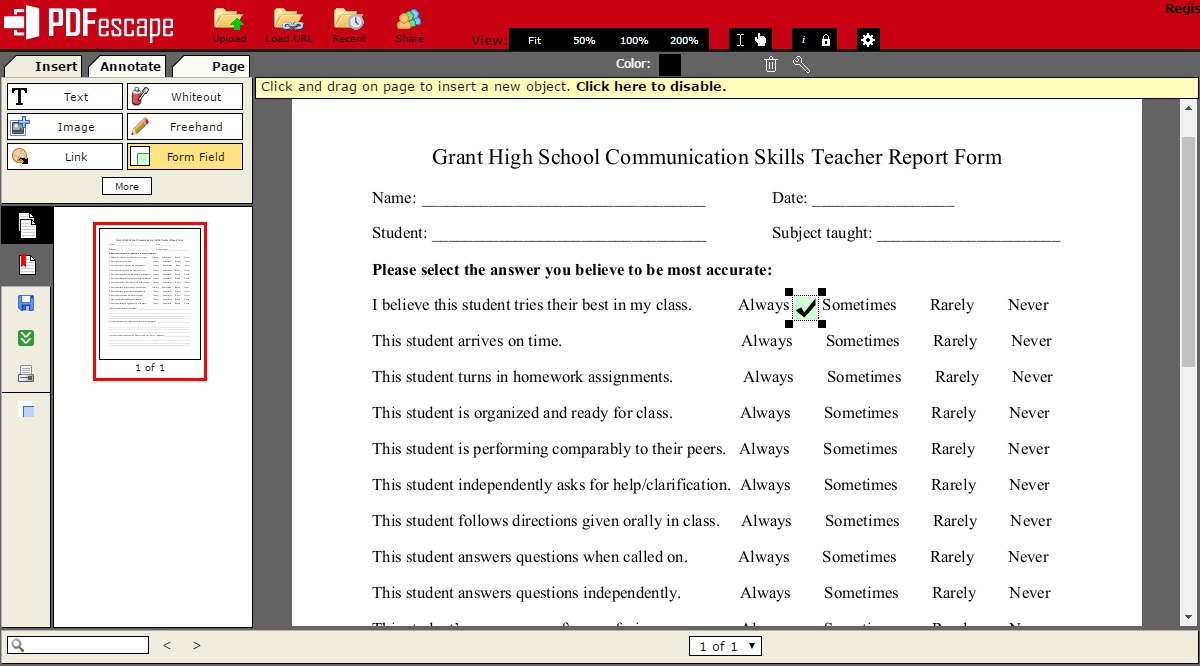
With fillable .pdfs, I could e-mail out my rating scale or feedback form with no printing required. All the teachers have to do is download the form, fill it out on their computer, save it as a different file name, and e-mail it back to me. Simple. Even my technophobe teachers could manage that! There is no printing, no writing, no boxes, no trekking across the campus. It’s all digital, it’s all easy. 

So How Do You Do It?
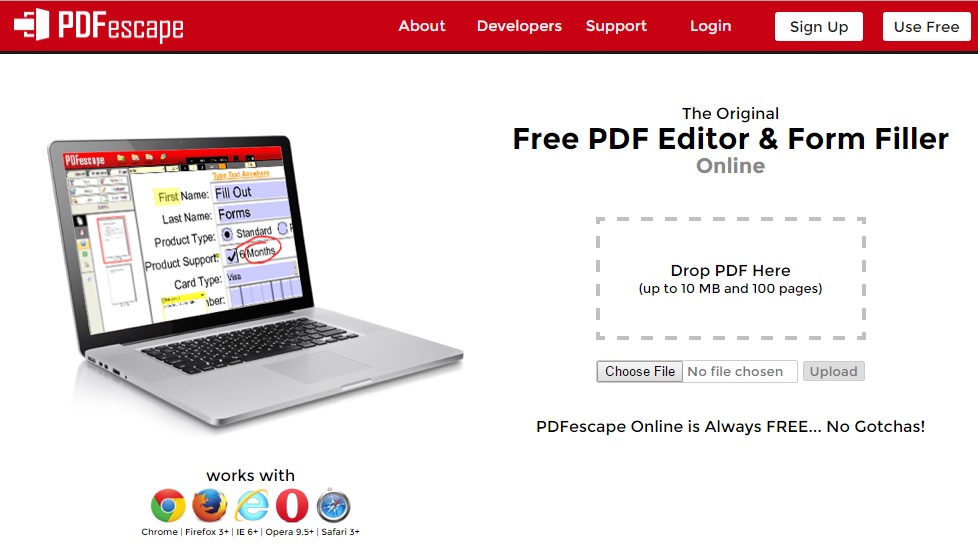
PDF Escape Screenshot.jpg
The best free website I’ve found for creating fillable .pdfs is pdfescape.com. It’s free, it’s easy, and it has all the tools I need (e.g. check boxes). Simply upload a PDF (which you create by saving any Word Document as a .pdf extension) and start editing! Create check boxes, lines for extra comments, drop down menus… the options are endless. I took a .pdf fluency rating scale I found on-line and used pdfescape.com to allow my teachers to fill it out online. Chances are, the rating scales you already use just need a quick conversion in pdfescape.com!


PDF Escape Editing Screenshot.jpg


I’ve included a link to my Teachers Pay Teachers store where you can download a fillable .pdf I created for my RSP/gen ed teachers. Feel free to use my form at your school/s. However, I encourage you to use it as an example of what can be accomplished so you can make teacher feedback forms that are more fitting for your individual school/s.


Fillable .pdfs are an awesome tool - the uses are endless! Parent questionnaires, teacher questionnaires, recording student work… I’m sure you all can generate event more ideas and I’d love to hear about any ideas you have in the comments below! Questions are welcomed and appreciated!

As always, it doesn't have to be fancy, just keep it fun and functional!
  • Jillian, the No-Frills SLP